Master the PowerGraph Gantt Timeline: The Definitive Guide to Professional Project Visualization in Power BI

Introduction: Bridging the Gap Between Project Data and Executive Reporting

The PowerGraph Gantt Timeline visual is designed to transform complex work management data from sources like Jira, Azure DevOps, and Microsoft Project into clear, comprehensive, and interactive project schedules.

This guide details the advanced formatting and feature options that allow your PMO to move beyond static reports, enabling real-time project oversight, informed decision-making, and seamless communication across all stakeholders.

Feature Area
Project Hierarchy (Categories)
Timeline Bars (Tasks & Progress)
Milestones & Labels
Core Benefit
Controls the visual structure and readability of your Work Breakdown Structure (WBS) and project list.
Defines how tasks, progress, baselines, and summary tasks are displayed, providing immediate status checks.
Highlights critical project dates and provides essential context without visual clutter.

Defining the Project Hierarchy (Categories)

This section controls the display of your project or task list—the structure often referred to as the Work Breakdown Structure (WBS).

Formatting Option
Category Row Height
Category Grid
Dynamic Category Widths
Category Text
Purpose & Benefit
Adjusts the vertical spacing of each project row. Benefit: Optimize for data density (height 0) or improved readability and white space.
Customizes the horizontal grid lines that separate project rows. Benefit: Enhance visual separation and tracking across the timeline.
Allows manual adjustment of the width of each category column. Benefit: Ensure proper display of long project or task names, preventing truncation.
Standard text formatting for project/task names. Benefit: Ensures WBS text is clear and consistent with corporate branding.
Configuration Details
Adjustable padding to control row density.
Color and opacity settings are fully adjustable.
Widths can be adjusted manually in the format pane or via drag-and-drop by the report builder. Hidden columns can be configured for data but not display.
Standard font, size, color, and optional text wrap settings are available.

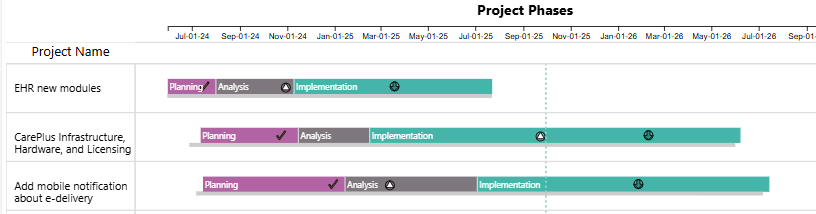
Row height 20:

PowerGraph Gantt Timeline for Power BI - Row Padding 20

Row height 0:

PowerGraph Gantt Timeline for Power BI - Row Padding 0

Category grid with red color and high opacity:

PowerGraph Gantt Timeline for Power BI - Category grid red color and high opacity
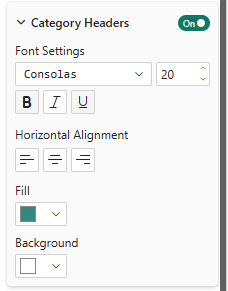
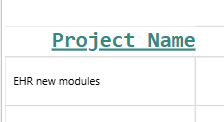
Category Headers text settings:
PowerGraph Gantt Timeline for Power BI - Category headers text 1
PowerGraph Gantt Timeline for Power BI - Category headers text 2
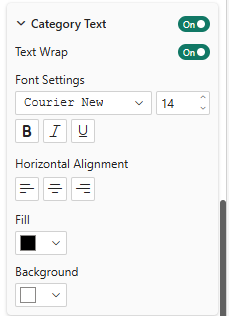
Category text settings:
PowerGraph Gantt Timeline for Power BI - Category text 1
PowerGraph Gantt Timeline for Power BI - Category headers text 2

Additional entries are dynamically created in the Category Format area for each category level.  These can be individually hidden from display, and the width of each can be adjusted manually:
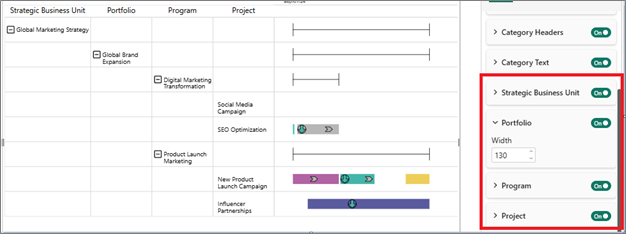
PowerGraph Gantt Timeline for Power BI - Category entries

Category widths can also be adjusted through drag-and-drop:
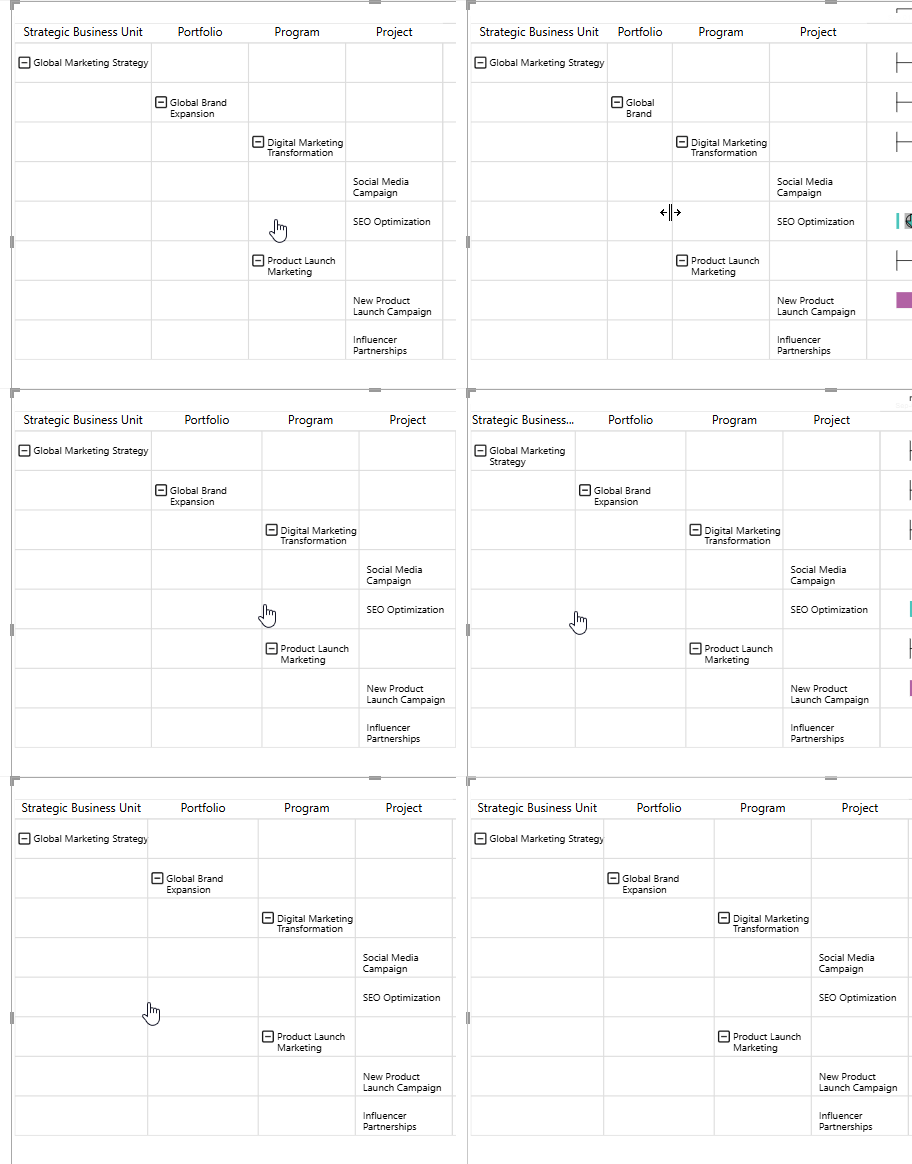
PowerGraph Gantt Timeline for Power BI - Category column width drag-and-drop

Visualizing Work and Progress (Bars)

The Bars section controls the core timeline elements, allowing you to clearly communicate task duration, status, and variance against the original plan.

  • Task Bar Display and Sizing
  • Display Toggle: Report builders can choose to turn the display of bars on/off in the format area, and report viewers have controls to show/hide them interactively.
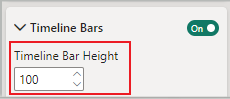
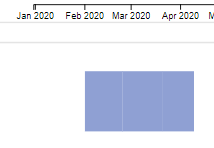
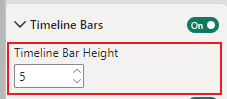
  • Bar Height: Adjustable setting to make bars very thick (for emphasis) or very thin (for high-density views).
  • Bar Text & Color Coding
Formatting Option
Bar Text
Category Color Coding
Purpose & Benefit
Displays optional text directly within the timeline bar. Benefit: Add key data points like task ID, resource owner, or critical path status right on the visualization.
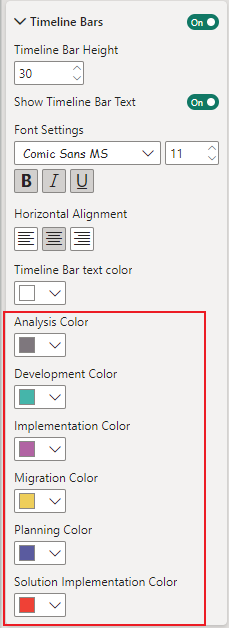
Assigns a unique color to different bar categories in the data (e.g., "Development Task," "Testing," "Client Review"). Benefit: Provides an at-a-glance status or resource allocation map for the entire portfolio.
Configuration Details
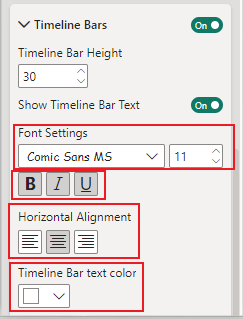
Customize font, size, bold/italic/underline, alignment, and color.
Color selection available for each unique bar category present in the data.

Bar height settings:

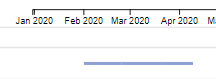
PowerGraph Gantt Timeline for Power BI - bar height 100 1
PowerGraph Gantt Timeline for Power BI - bar height 100 2
PowerGraph Gantt Timeline for Power BI - bar height 5 1
PowerGraph Gantt Timeline for Power BI - bar height 5 2

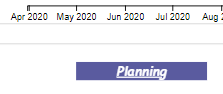
Bar text settings:

PowerGraph Gantt Timeline for Power BI - bar text 1
PowerGraph Gantt Timeline for Power BI - bar text 2

Bar legend settings:

PowerGraph Gantt Timeline for Power BI - bar text 1
PowerGraph Gantt Timeline for Power BI - bar legend

Advanced Progress and Planning Features

Feature
Summary Bars
Progress Bars
Baseline Bars
Business Value
Displays tasks and projects in a multi-level hierarchy with collapsible rows. Benefit: Allows Portfolio Managers to quickly drill down from high-level programs to individual tasks, improving reporting efficiency.
Displays a secondary bar inside the main timeline bar representing percent complete. Benefit: Provides immediate, visual feedback on task completion status, crucial for tracking Earned Value or simple status updates.
Displays a secondary, thin bar below the main timeline bar. Benefit: Crucial for PMO governance. Visually compares actual progress against the original project plan (the baseline), essential for variance analysis.
Configuration
Toggle on/off. Customize summary bar color and weight (thickness). Supports displaying milestones and data labels on the summary bar itself.
Toggle on/off. Customizable color for the progress bar.
Toggle on/off. Customizable height and color for the baseline bar.

Summary bars:

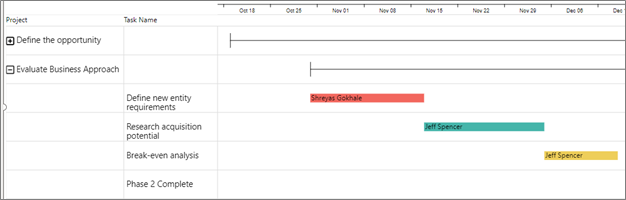
PowerGraph Gantt Timeline for Power BI - summary bars 1

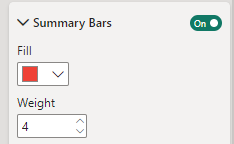
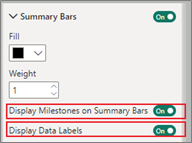
Summary bar settings:

PowerGraph Gantt Timeline for Power BI - summary bar settings 2
PowerGraph Gantt Timeline for Power BI - summary bars 3
PowerGraph Gantt Timeline for Power BI - summary bar settings 4
PowerGraph Gantt Timeline for Power BI - summary bars 5

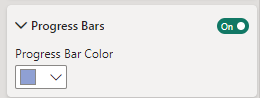
Progress bar settings:

PowerGraph Gantt Timeline for Power BI - progress bar settings
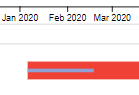
PowerGraph Gantt Timeline for Power BI - progress bar

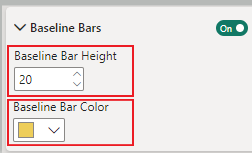
Baseline bar settings:

PowerGraph Gantt Timeline for Power BI - baseline bars settings
PowerGraph Gantt Timeline for Power BI - Baseline bars

Highlighting Critical Dates and Interactivity

These features ensure that critical project dates (milestones) are instantly recognizable and that the report is easy for any stakeholder to navigate.

Milestone Icons

Milestones are critical project checkpoints aligned to specific dates.

  • Milestone Icon Customization: Each milestone category can be assigned a unique icon shape and color.
    • Benefit: Enables visual differentiation between critical events, such as “Go/No-Go Decision” vs. “Project Delivery.”
    • Configuration: You can choose from 42 different icon shapes and set the icon size and color.
  • Display Toggle: Report builders and viewers can toggle the display of all milestones on or off.

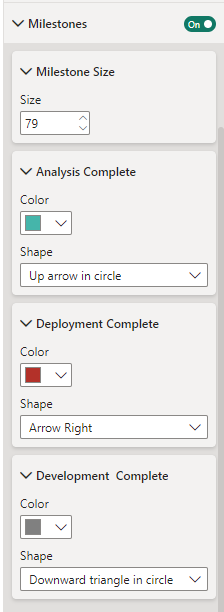
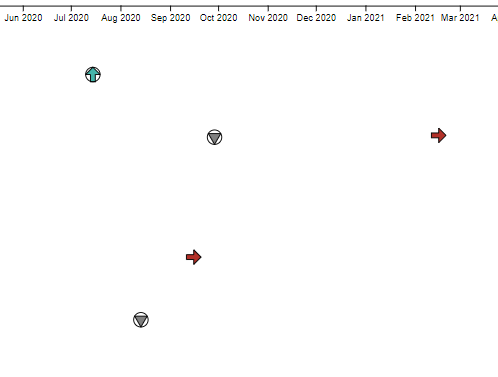
Milestone icon settings:
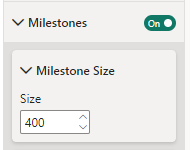
PowerGraph Gantt Timeline for Power BI - Milestone icon settings 1
PowerGraph Gantt Timeline for Power BI - Milestone icons
PowerGraph Gantt Timeline for Power BI - Milestone icon settings 2
PowerGraph Gantt Timeline for Power BI - Milestone icons 2

Data Labels and Readability

Data labels provide critical context for bars and milestones.

  • Label Positioning: Labels can be set to appear on top of or to the right of the Gantt Timeline bars or milestone icons.
  • Declutter Labels: This essential feature automatically adjusts label height to prevent text overlap.
    • Benefit: Maintains a clean, professional look even in complex, data-dense dashboards, supporting better stakeholder readability.
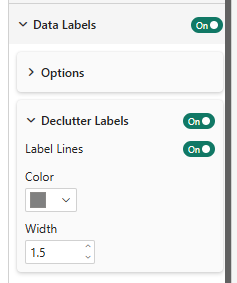
    • Configuration: Standard text formatting is available. The data label line color and width are also adjustable.

Data label settings:
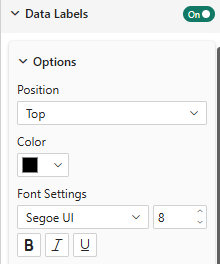
PowerGraph Gantt Timeline for Power BI - data label settings 1
PowerGraph Gantt Timeline for Power BI - data labels 1
PowerGraph Gantt Timeline for Power BI - data label settings 2
PowerGraph Gantt Timeline for Power BI - data labels 2

Interactivity

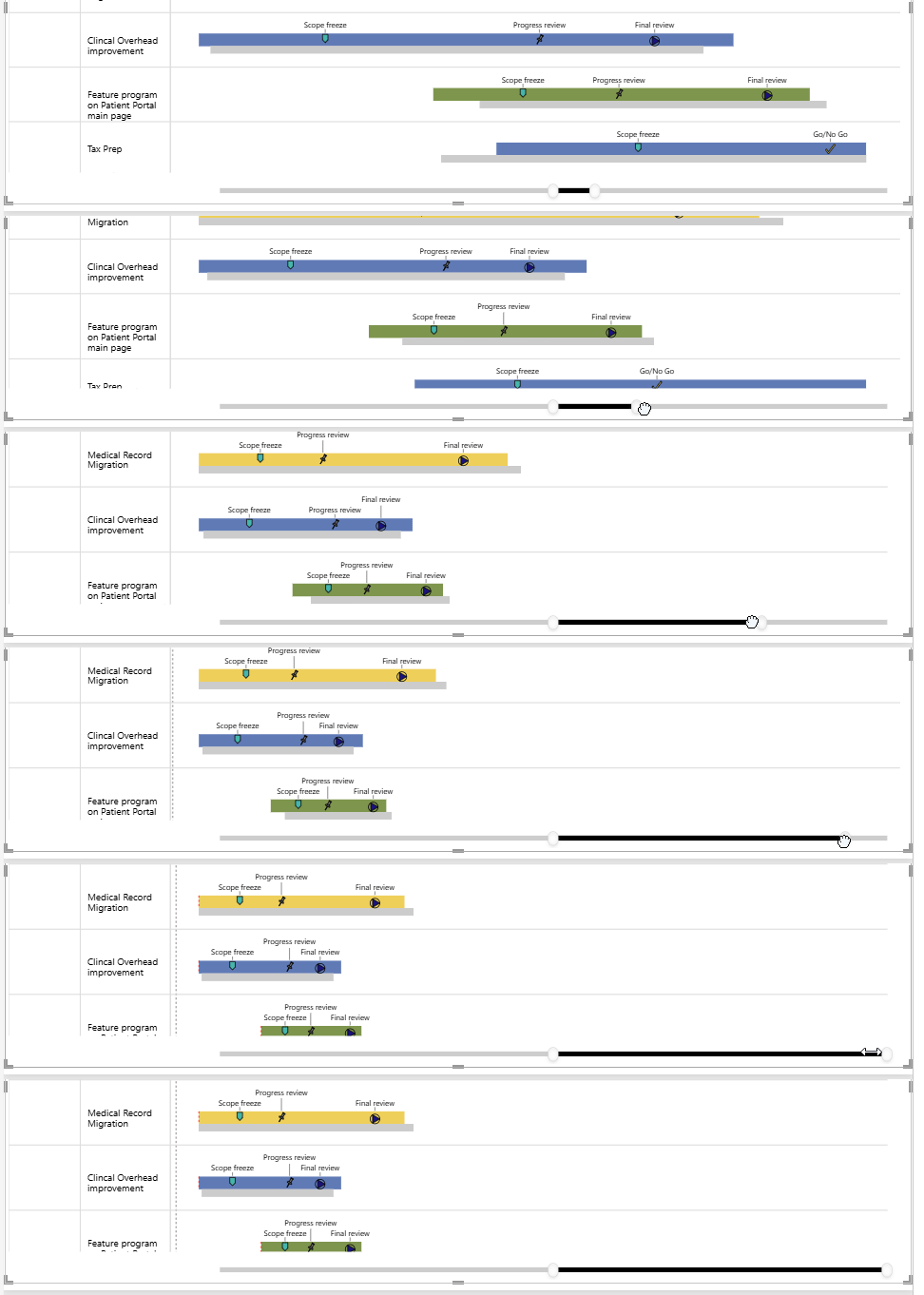
  • Zoom Slider: A dedicated control for report viewers to zoom in and scroll across the project timeline. Benefit: Allows deep inspection of specific time periods without altering the underlying report view.
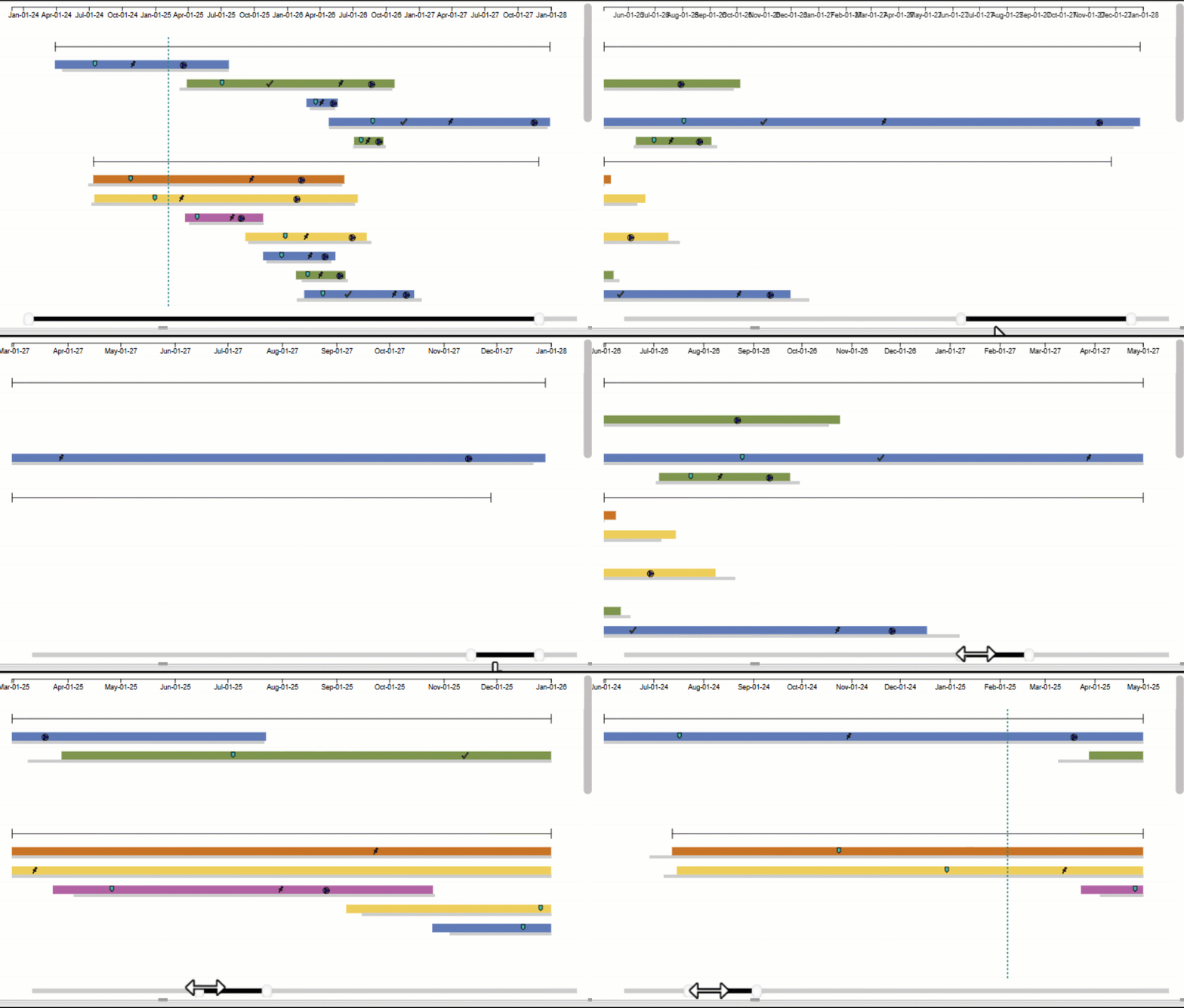
PowerGraph Gantt Timeline for Power BI - zoom slider