
CrossLink for Smartsheet Help
CrossLink for Smartsheet lets you link a Getter Row to the Giver Row it should follow, across your Smartsheet Sheets. When a Giver’s dates move, CrossLink flags the link Drifted and proposes a matching date for the Getter. On a link set to Buffer, it does this only once the move has used up the spare days between the two Rows. CrossLink never changes a Getter Row by itself: you review each proposed change and choose whether to Accept it.
Jump to: Getting started · The ideas in two minutes · Timeline and Monitor · Create a link · When a link is Drifted · When a link is Broken · History, and deleting a link · Daily digest email · Export and import · What CrossLink changes in your Sheets · Troubleshooting · What your administrator manages · Getting help · Glossary
Getting started
Where to find CrossLink. CrossLink runs at a web address of its own. You get it from the person who set CrossLink up for your organization. Bookmark it.
Signing in. What you see first depends on how CrossLink was set up for you.
- If you see a Microsoft sign-in page first, sign in with your work account. CrossLink opens after that.
- If CrossLink asks you to sign in with Smartsheet, you see a Connect Smartsheet button. Press it, sign in to Smartsheet if asked, and approve access. You come back to CrossLink connected as yourself. Your name appears in the account menu (your initials, top right).
- If CrossLink opens without asking you to sign in with Smartsheet, it is already connected to Smartsheet through one shared account that your organization set up. Everyone using CrossLink works through that same account, so everyone sees the same links. The Sheets you can pick from are the ones the shared account can open, which may include Sheets you can’t open yourself in Smartsheet.
While CrossLink checks your connection you see Checking connection… for a moment.

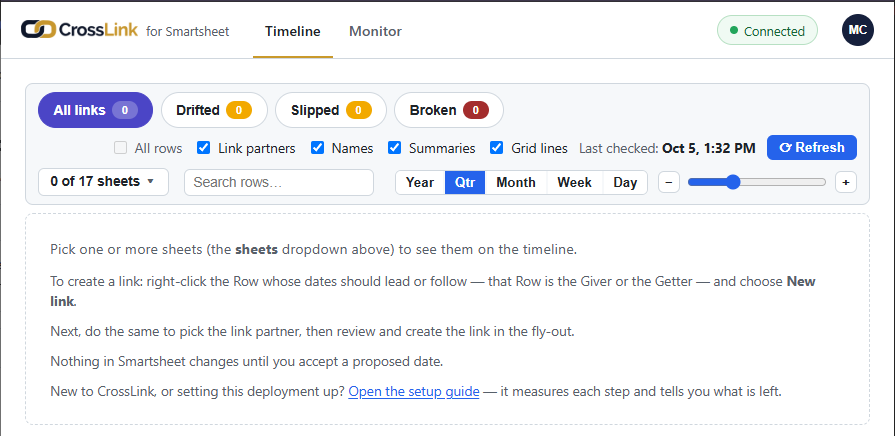
Your first screen. CrossLink opens on the Timeline. Until you choose some Sheets, the Timeline shows a short guide to picking Sheets and creating your first link, instead of a chart.
Open the Sheet picker at the top of the Timeline, tick the Sheets you work in, and their Rows appear on the chart.
The ideas in two minutes
- Sheet — one of your Smartsheet Sheets. CrossLink shows the Sheets your Smartsheet account can open. If CrossLink opened without asking you to sign in with Smartsheet, it shows the Sheets the shared account can open, which may include Sheets you can’t open yourself.
- Row — one Row in a Sheet. Most Rows have a start and a finish date; some have a single date.
- Link — a connection between two Rows, usually on different Sheets. One Row follows the other.
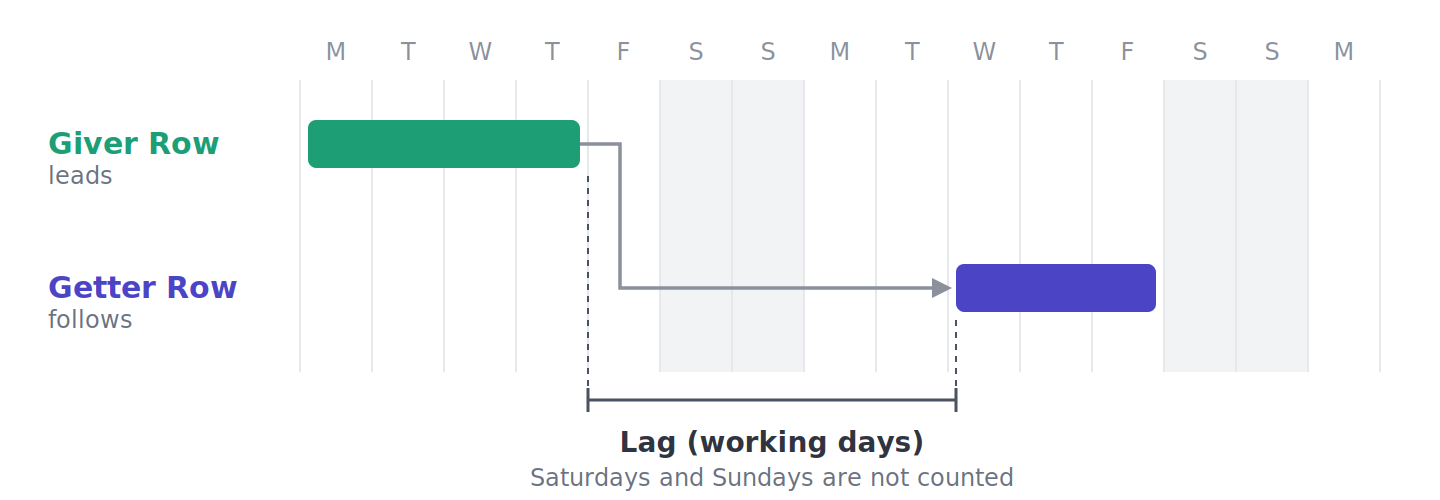
- Giver — the Row that leads. CrossLink watches its dates. Shown in teal.
- Getter — the Row that follows the Giver. When the Giver moves, CrossLink proposes a matching move for the Getter. Shown in purple.
- Lag — the gap between the Giver’s date and the Getter’s date, counted in working days. By default it runs from the Giver finishing to the Getter starting. CrossLink counts Monday to Friday as working days. It does not know about holidays or custom working days set up in your Sheet.
Every link has one of three statuses. CrossLink shows each with a symbol and a word:
| Symbol | Status | What it means |
|---|---|---|
| ✓ (green) | In sync | The Getter still lines up with its Giver. Nothing to do. |
| ● (amber) | Drifted | The Giver’s dates moved, so CrossLink has a proposed change for the Getter waiting for you. |
| ✕ (red) | Broken | The link itself needs attention — for example, a Row or Sheet it points at was deleted. |
On the Timeline, each link is also drawn as a line between its two Rows: gray for In sync, amber for Drifted and red for Broken. The legend under the chart uses the same words. When you open an In sync link, its panel reads No change — In sync.
Whose links you see. If CrossLink asked you to sign in with Smartsheet, the Timeline and Monitor show the links you created. Colleagues see their own. If CrossLink opened without asking you to sign in with Smartsheet, everyone shares one account, so everyone sees the same links.
Timeline and Monitor
CrossLink has two views. Switch between them with the Timeline and Monitor tabs at the top. You can do your everyday work in either one: create links, open them, Accept proposed changes, use Add lag, read their history and delete them. Use whichever suits you — many people do everything on the Timeline.
Timeline is a chart of the Sheets you tick, with your links drawn between their Rows. You see how your Rows line up, and a Drifted link shows you the proposed change right on the chart.
- The Sheet picker (it reads, for example, “3 of 12 sheets”) chooses which Sheets the chart shows. It has a search box and All / None buttons. CrossLink remembers your choice.
- Filter chips — All links, Drifted, Slipped and Broken — narrow the chart to links with that status. Slipped shows the Drifted links whose Giver moved later.
- All rows shows every Row of the Sheets you tick, not only the linked ones. It stays on when you create a link.
- Link partners, when ticked, also shows the linked Rows from Sheets you haven’t ticked.
- Names, Summaries and Grid lines show or hide the Row names on the chart, the summary Rows and the chart’s grid. CrossLink remembers Summaries and Grid lines the next time you open the Timeline in the same browser.
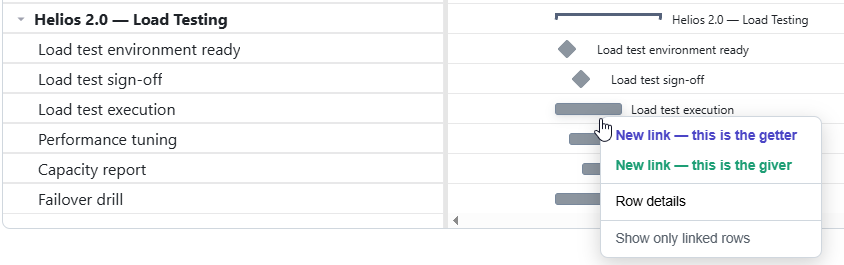
- Right-click a Row to create a link, or choose Row details to see every link on that Row.
- Right-click a linked Row and choose Show only linked rows to narrow the chart to that Row and the Rows it is linked to. CrossLink ticks their Sheets if they aren’t ticked already, and a Linked to: chip shows which Row you chose. Press the chip’s ✕, or Esc, to see everything again.
How Rows are drawn. On a Sheet with dependencies turned on, each Row is a bar from its start to its finish. On a Sheet without dependencies, a Row is a bar when the Sheet has a start column and a finish column (for example Start and Finish) and both are filled on that Row. If the two dates are the same, the Row is a one-day diamond. Any other Row on such a Sheet is a diamond on one date: the date its link uses, or else the Sheet’s main date column (the one named Due, or else Finish or End).
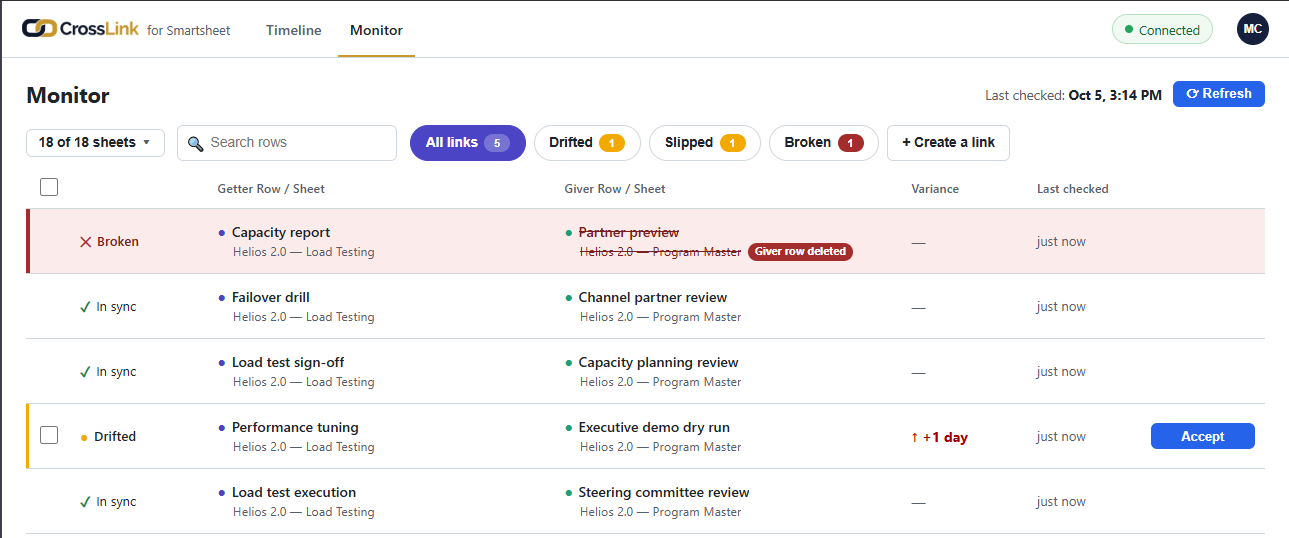
Monitor is the same links as a list: each link’s Getter Row, Giver Row, how far the dates have moved, and when it was last checked. It suits working through many links at once.
- The same All links, Drifted, Slipped and Broken chips filter the list, each with a count.
- The same Sheet picker limits the list to links that touch the Sheets you tick.
- + Create a link opens a form for creating a link by picking Sheets and Rows from lists.
- Each Drifted link has an Accept button in the list, and you can Accept several links at once.
- When you have no links yet, the Monitor tells you you’re all caught up.
Refresh. Both views have a ⟳ Refresh button and a Last checked: time beside it. CrossLink checks your links when you open a view. Press ⟳ Refresh to re-read your Sheets from Smartsheet and check every link again now.

Create a link
You can create a link on the Timeline or on the Monitor.
On the Timeline, right-click the two Rows. You can pick either side first.
- Right-click the Row that should follow and choose New link — this is the getter. (Or right-click the Row that should lead and choose New link — this is the giver.)
- A banner appears asking you to pick the other Row, and the New link panel opens on the right.
- Right-click the other Row and choose This is the giver (or This is the getter).
- Check the panel. It shows both Rows, their Sheets, the date each side uses, and the Lag between them in working days. On a Sheet without dependencies, each side names its date column — for example “Current Start” on the Getter — and shows that column’s date.
- Under Lag policy, choose Preserve lag or Buffer (see below). Preserve lag is already selected.
- Press Create link. There is no extra confirmation. A message at the bottom right confirms the link was created, naming both Rows, for a few seconds.
To stop, press Cancel on the banner or close the panel.
On the Monitor, press + Create a link. The Create a link form asks for the Getter first: choose the Getter sheet and the Getter row. Then choose the Giver sheet and the Giver row. Check the lag, choose a Lag policy, and press Create link.
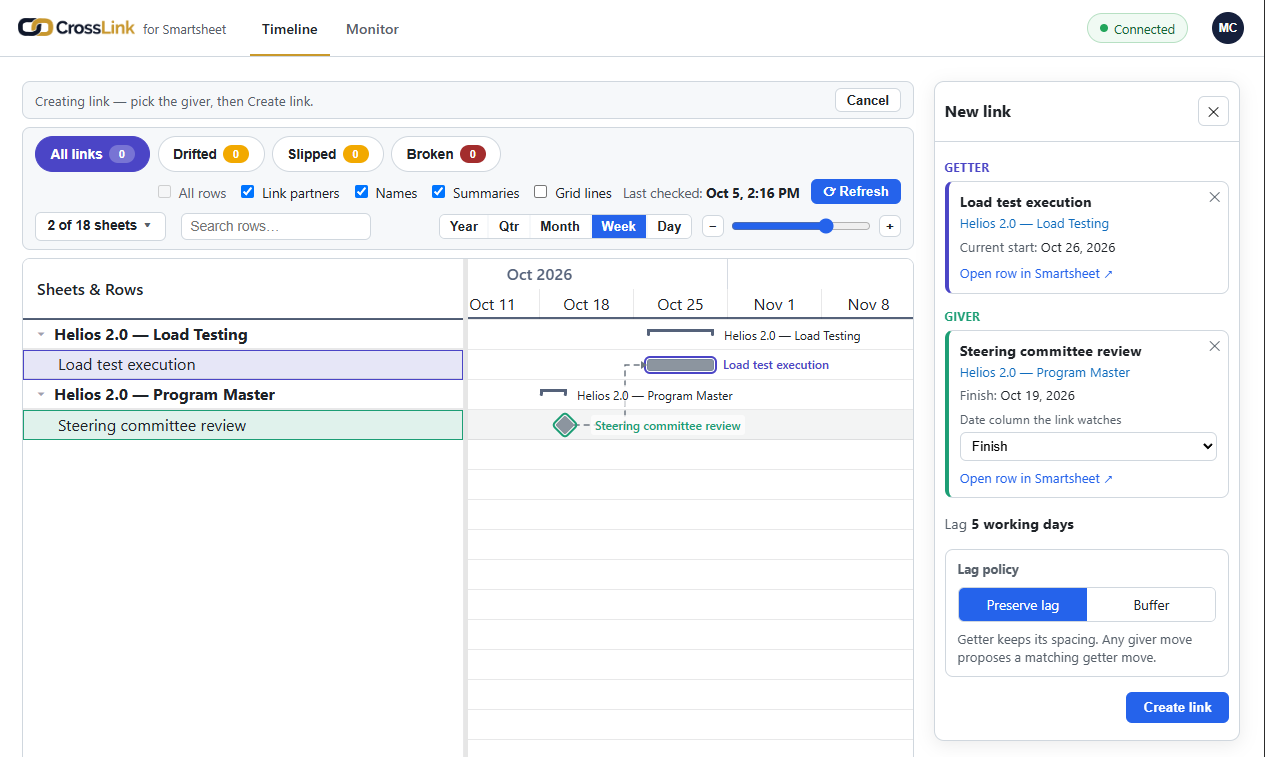
Which dates a link uses. On a Sheet with dependencies turned on, a link always uses the Giver’s finish and the Getter’s start; Smartsheet works out the Getter’s finish. On a Sheet without dependencies a Row can have several date columns, so the panel lets you choose, whenever the Sheet has more than one:
- Date column the link watches (the Giver’s side) — the date CrossLink watches for moves. It starts on the Sheet’s main date column: the one named Due, or else Finish or End.
- Date column that follows the Giver (the Getter’s side) — the date Accept moves. On a Sheet with a start column and a finish column it starts on the start column, and the line beneath it reads, for example, Start and Finish move together. — Accept moves both, so the Row keeps its length.
Changing either one updates the date and the Lag the panel shows. The choice is fixed once the link is created; to change it, delete the link and create it again.
Lag policies.
- Preserve lag — the Getter stays the same number of working days after the Giver. When the Giver moves, CrossLink proposes the Giver’s new date plus that same number of working days. A Giver date on a Saturday or Sunday counts as the Friday before it, so the proposed date is always a weekday. For example, if the Giver moves from a Friday to the next Monday — one working day — the Getter moves one working day too, though the Giver moved three calendar days.
- Buffer — you set a Target number of working days. When the Giver slips, the spare days between the two Rows are used up first. CrossLink only proposes moving the Getter once the gap would fall below your target.
A negative lag is accepted. If the Getter Row starts before the Giver Row finishes, the panel shows a negative lag and says Getter starts before giver finishes. That is simply how the two Rows’ dates sit today. You can still create the link.
The panel also stops two mistakes: A row can’t link to itself — pick a different row for one side. And A link already exists between these two rows. That second rule holds everywhere: a Getter Row can follow a given Giver Row through only one link, whatever date columns you choose. The Timeline and the Monitor both refuse a second one, and Import skips it.
When a link is Drifted
What it means. The Giver Row’s dates have moved since the link was last in line, and CrossLink has a proposed new date for the Getter Row. Nothing has changed in your Sheet yet.
See it and open it — on either view.
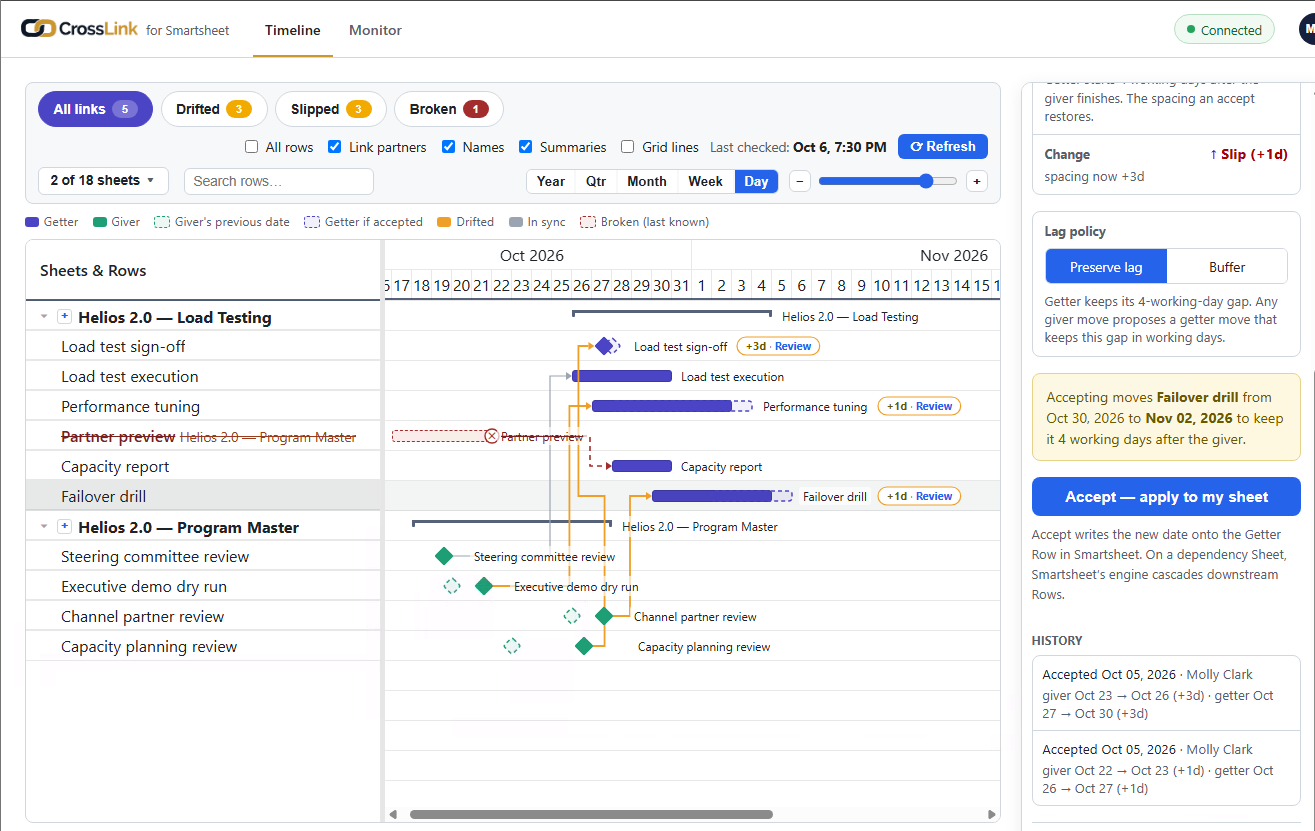
- On the Timeline, a Drifted link shows a small tag on the Getter Row with how far it would move and the word Review — for example +7d · Review. The number takes one of two forms, depending on the link’s Lag policy (see Create a link):
- d — on a link set to Preserve lag: how many calendar days the Giver moved, for example +7d. The Getter’s own move, counted in working days, can differ; the panel shows its exact dates.
- wd — on a link set to Buffer: how many working days the Getter would move, once the spare days are used up, for example +2wd.
A minus sign instead of a plus means the move is earlier. Dashed bars show the Giver’s previous date and where the Getter would sit if you accept. Click the tag (or the line joining the two Rows) to open the link.
- On the Monitor, click the link in the list.
Either way, the same link panel opens on the right, with the same buttons. It tells you exactly what Accept would do: which Row moves, and from which dates to which dates.
Accept. Press Accept — apply to my sheet in the panel. (On the Monitor you can also press Accept beside the link in the list.) What CrossLink writes depends on the Getter’s Sheet:
- On a Sheet with dependencies turned on, it writes the Getter Row’s start, and nothing else. Smartsheet works out the finish.
- On a Sheet without dependencies, it writes the date column the link follows. When that is the Sheet’s start or finish column and the Row has both dates, Accept moves the start and the finish together, in one change, so the Row keeps its length in working days. If the Row has only one of the two dates, only that one moves. Any other date column moves on its own.
The panel then shows the link In sync, with the Accept at the top of its History.
If Smartsheet won’t take a date. If a column Accept has to write is set by a formula, Accept writes nothing at all — not even the other date — and the panel names the column. Change the Row in Smartsheet yourself, or ask the Sheet’s owner.
When one Row is the Getter of two links. On a Sheet without dependencies, if the Getter Row also follows a different Giver through another link, and Accept would move the date that other link uses, the panel tells you before you press Accept: which link, and how its lag changes, in working days. On the Monitor, such a link shows Open to review instead of Accept, and Accept selected skips it, so you always see that change in the panel first.
Smartsheet may then move other Rows. On a Sheet with dependencies, Smartsheet’s own scheduling moves any Rows that depend on the one CrossLink changed. Those moves can make another of your links Drifted.
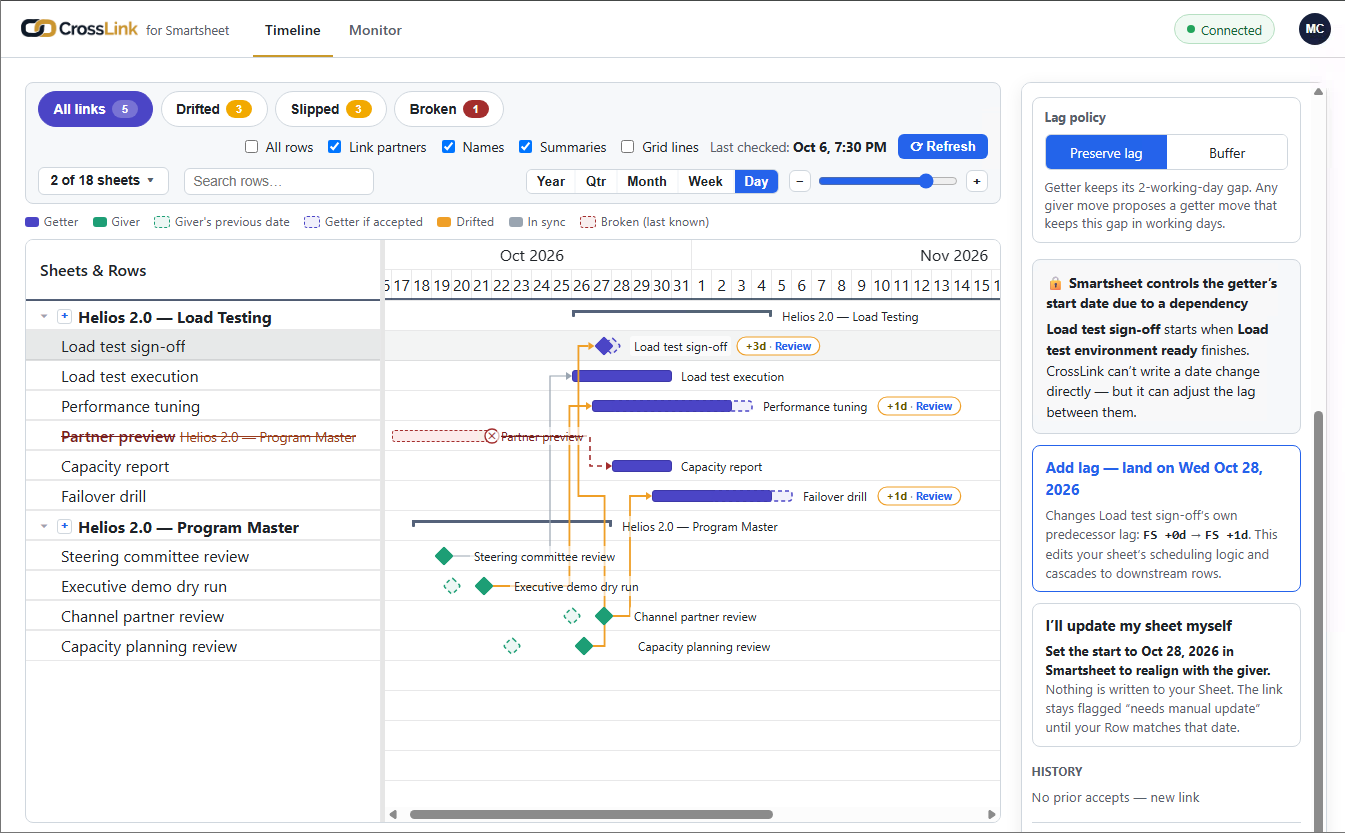
When the Getter’s start is set by Smartsheet’s Predecessors column. Smartsheet works out that Row’s start date itself and won’t accept a date typed over it. The panel shows 🔒 Smartsheet controls the getter’s start date due to a dependency and offers what it can instead:
- Add lag — offered when the Row follows exactly one Row through its Predecessors cell, with a working-day lag, and changing that lag would move it. The button names the date the Row will land on, for example Add lag — land on Wed Oct 28, 2026. CrossLink changes the lag in the Getter Row’s own Predecessors cell (for example from FS +0d to FS +1d), and Smartsheet then moves the Row. The date is the same one Accept would write, so it is always a weekday.
- I’ll update my sheet myself — CrossLink writes nothing. The link stays flagged Needs manual update until the Getter Row matches the proposed date in Smartsheet.
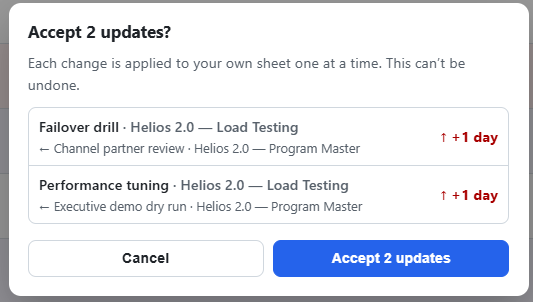
Accepting several links at once. This one is on the Monitor: tick the links you want and press Accept selected (n) — up to 30 at a time. A confirmation asks Accept n updates? and warns that each change is applied to your Sheet one at a time and can’t be undone. Afterwards, Batch accept results lists what was accepted and what is still open, with a line for any link that has to be accepted from its panel. Closing it checks every link again, because an Accept can move downstream Rows in your Sheet and make another link Drifted.
“Changed since you opened it”. CrossLink never writes over a change it hasn’t shown you. If the Getter Row moved in Smartsheet after you opened the panel, Accept writes nothing and says:
The Getter Row has changed since you opened this panel, so nothing was written. The proposal stays open — press Refresh to see where the Row sits now, then try again.
Press ⟳ Refresh on the view you’re using, look at the new dates, and Accept again if they’re right. If you pressed Accept in the Monitor’s list, the same situation reads “The Getter Row has moved since this list was loaded, so nothing was written. Open the link to see where the Row sits now, and Accept from there.” That link’s button becomes Open to review.
When a link is Broken
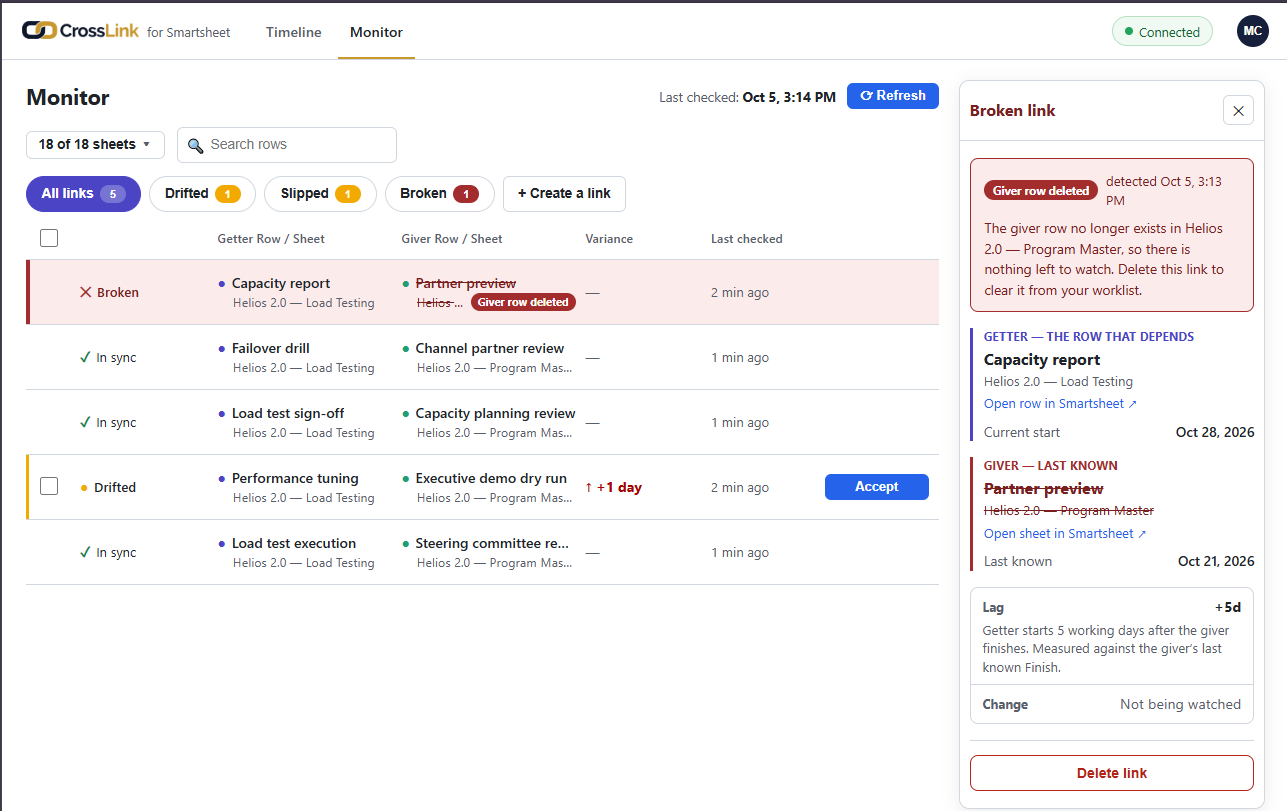
A Broken link has no change waiting — something it depends on is gone. On the Timeline it is drawn as a red line; on the Monitor it has a red ✕. Open it from either view to see a red reason label and a sentence telling you what to do:
| Label | What happened | What to do |
|---|---|---|
| Giver row deleted | The Giver Row was deleted from its Sheet. | Delete link to clear it away. |
| Giver sheet deleted or no longer shared | The Giver’s whole Sheet was deleted, or it is no longer shared with you. | If the Sheet still exists, ask its owner to share it with you again — the link comes back by itself. Otherwise, Delete link. |
| Getter row deleted | The Getter Row was deleted from its Sheet. | Delete link. |
| Getter sheet deleted or no longer shared | The Getter’s whole Sheet was deleted, or it is no longer shared with you. | If the Sheet still exists, ask its owner to share it with you again — the link comes back by itself. Otherwise, Delete link. |
| Broken | “This link couldn’t be watched the last time it was checked. It will be re-checked on the next refresh.” | Press ⟳ Refresh. |
While a link is Broken its panel reads Not being watched, and it offers no Accept, no Lag policy and no history. The side that is gone is shown struck through, with its last-known dates.
When a Sheet is deleted or no longer shared. Smartsheet answers the same way when a Sheet is deleted and when it’s no longer shared with you, so CrossLink can’t tell which happened. The link shows as Broken, labeled Giver sheet deleted or no longer shared (or Getter…). If the Sheet still exists, ask its owner to share it with you again — the link comes back by itself, with its History. To see it on the Timeline again, tick it in the Sheet picker.
When Smartsheet refuses a read. Occasionally Smartsheet won’t let CrossLink read a Sheet even though the Sheet is still there. The link isn’t marked Broken. Instead the panel says:
You may have lost access to Sheet name — this can be temporary. CrossLink is showing last-known dates and resumes watching on its own once access returns.
While that message shows, the panel offers no Accept. Check that the Sheet is still shared with you in Smartsheet. CrossLink picks the link up again by itself once it can read the Sheet. If access won’t come back, press Delete link — that also deletes the link’s History.
History, and deleting a link
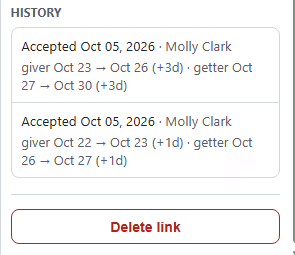
History. Each link’s panel has a History section. It lists every Accept and every Add lag on that link, newest first: the date, who did it, and how the Giver and the Getter moved, each from one date to another. The five most recent show first; press Show more to see the rest. A link that has never been accepted shows No prior accepts — new link.
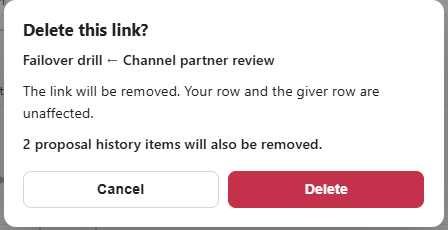
Deleting a link. Open the link and press Delete link at the bottom of the panel. A confirmation asks Delete this link? and tells you that only the link is removed — both Rows stay as they are. Deleting a link also deletes its history — the confirmation says how many history items go with it. Nothing in your Sheets changes.
Daily digest email
CrossLink can email you once a day when something of yours needs attention.
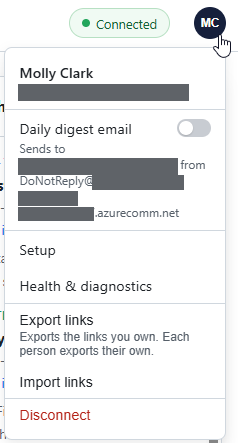
Turning it on and off. Open the account menu (your initials, top right) and use the Daily digest email switch. It is off until you turn it on. The line under the switch says where the email goes and which address it comes from.
When it arrives. The digest day starts at 13:00 UTC. You get at most one email a day, sent from 13:00 UTC onward, and only on days when at least one of your links is Drifted or Broken. A quiet day sends nothing. The subject line reads, for example, “3 dates you depend on moved — review”, and the Review in CrossLink button opens the Monitor.
The sender. The digest comes from a no-reply address that belongs to your organization’s CrossLink deployment. The address starts with DoNotReply@ and ends in .azurecomm.net. The line under the switch shows the full address. Mail from a new sender can land in quarantine or junk the first time. If your first digest doesn’t arrive, check there, and ask your mail administrator to add the sender to your organization’s allowed senders.
If CrossLink opened without asking you to sign in with Smartsheet, everyone shares one account, so the Daily digest email switch is one switch for everybody. The email goes to that shared account’s email address in Smartsheet, not to you personally. Anyone who uses CrossLink can turn it on or off for everyone.
To stop the email, turn the switch off. Every digest ends with a reminder of how to do this.
Export and import
Export. In the account menu, choose Export links. CrossLink downloads a spreadsheet (.xlsx) holding links and their history. Which links it holds depends on how CrossLink was set up:
- If CrossLink asked you to sign in with Smartsheet, the export holds only your own links. Each person exports their own.
- If CrossLink opened without asking you to sign in, everyone shares one account, so the export holds everyone’s links.
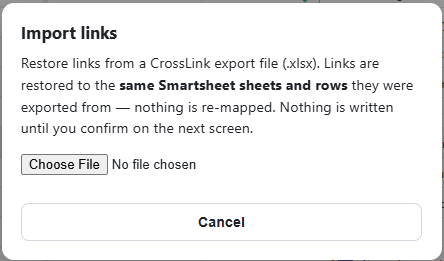
Import. In the account menu, choose Import links and pick an export file. Links go back to the same Sheets and Rows they were exported from; nothing is moved to other Sheets or Rows. CrossLink checks the file and shows what it will create, and nothing is written until you confirm.
After an import:
- The imported links belong to you, the person who imported them.
- Links that already exist are skipped, not overwritten.
- History comes back with each link the import creates.
- Each link’s status is checked again the next time CrossLink checks your links.
- If you imported into a new CrossLink deployment, turn Daily digest email back on. The export file doesn’t carry that setting.
What CrossLink changes in your Sheets, and what it never does
- CrossLink changes your Sheets only when someone presses Accept or Add lag. Accept writes the Getter Row’s date — on a Sheet without dependencies, its start and finish together when the link follows one of them. Add lag changes the lag in the Getter Row’s Predecessors cell. Neither touches any other Row, or any other cell.
- CrossLink never changes a Getter Row by itself. Finding a change, flagging it, checking your links and sending the digest write nothing to your Sheets.
- After a write, Smartsheet’s own dependencies may move other Rows on that Sheet. That is Smartsheet’s scheduling at work, not CrossLink.
- To notice changes quickly, CrossLink asks Smartsheet to tell it when a Sheet with a Giver Row changes. That request does not change anything in the Sheet.
- I’ll update my sheet myself, changing a link’s Lag policy, creating a link and deleting a link all write nothing to your Sheets.
For how CrossLink handles your data, see the CrossLink for Smartsheet privacy statement.
Troubleshooting
My link says Broken. Open it and read the red label. If a Row was deleted (“Giver row deleted”, “Getter row deleted”), the link can’t be repaired — press Delete link. If a Sheet was “deleted or no longer shared”, and the Sheet still exists, ask its owner to share it with you again — the link comes back by itself; otherwise press Delete link. If the label just says Broken, press ⟳ Refresh: “It will be re-checked on the next refresh.”
I pressed Accept and nothing changed. If the link is now In sync, the Row was already where Accept would have put it, so CrossLink recorded the Accept and wrote nothing more (“Updated — the Getter Row was already on its new date, so nothing more was written.” shows only for a moment). If the link is still Drifted, read the message in the panel:
- “The Getter Row has changed since you opened this panel, so nothing was written.” — someone moved the Row in Smartsheet after you opened the panel. Press ⟳ Refresh, check the dates, and Accept again.
- “Couldn’t apply — Smartsheet wouldn’t accept a date written to this Row’s … column, so nothing was written.” — Smartsheet won’t take a date in that column — for example, it’s set by a formula. Change the Row in Smartsheet yourself, or ask the Sheet’s owner.
- “Nothing was written — this page was opened before CrossLink was updated.” — reload the page in your browser, then try again.
- Needs manual update — the Getter’s start is set by Smartsheet’s Predecessors column, so CrossLink can’t type over it. Use Add lag if it’s offered, or change the Row in Smartsheet yourself.
On the Monitor, the Accept button says Open to review. Either the Getter Row moved after the Monitor list loaded, or accepting would change another link that shares the same Getter Row. Click it to open the link, check what the panel says, and Accept from the panel.
My new link shows a negative lag. The panel shows Getter starts before giver finishes. That’s correct — it reflects where the two Rows’ dates are today. The link works normally.
I’m not getting the digest. Check that Daily digest email is on in the account menu. Remember it only sends on days when something of yours is Drifted or Broken, from 13:00 UTC. Look in junk and quarantine for the DoNotReply@ sender. If the line under the switch shows no “from” address, your CrossLink deployment may not be set up to send email — ask the person who set up CrossLink.
I can’t connect.
- “This deployment did not accept the account you connected with.” — your Smartsheet account isn’t on this deployment’s list of permitted people. Ask the person who set up CrossLink to add your address, then connect again. If you used the wrong Smartsheet account, sign out of Smartsheet first, then connect again.
- “Your Smartsheet connection expired — please reconnect.” — press Connect Smartsheet again.
- “Couldn’t reach Smartsheet just now — please retry.” — press Retry in a moment.
- “Smartsheet rejected this deployment’s access token, or it no longer has access.” — nobody can use CrossLink until this is fixed. Tell the person who set up CrossLink.
A Sheet’s Rows are missing from the Timeline. If you see “1 sheet couldn’t be read this time — its rows aren’t on the timeline, and links to it keep their last-known dates. Refresh to try again.”, press ⟳ Refresh. If a Sheet appears with nothing under it, its Rows may have no dates the chart can use. On a Sheet without dependencies, a Row appears only when it has a date in the Sheet’s main date column (usually Due, Finish or End) or in the column one of its links uses.
It says I may have lost access to a Sheet. “You may have lost access to … — this can be temporary.” Check the Sheet is still shared with you in Smartsheet. CrossLink resumes watching on its own once it can read the Sheet again.
I can’t create a link because of a Sheet limit. You see a message such as “Starter includes 3 linked sheets and has no overage. Move to Team in Setup to link more.” Your deployment’s Tier caps how many Sheets can have links. The Tier belongs to your administrator — ask the person who set up CrossLink.
An import stopped part-way. “The import stopped part-way. Some links may already have been created — check Monitor before you try again.” Importing the same file again skips links that already exist, but it does not bring back their history.
I can’t see a colleague’s links. If CrossLink asked you to sign in with Smartsheet, each person sees only the links they created. That is expected.
What your administrator manages
These settings belong to your administrator. You can open the Setup page from the account menu to see them.
- Tier — how many Sheets your deployment can link.
- Overage — whether the deployment can link Sheets beyond the number its Tier includes.
- Who may connect — which Smartsheet accounts may sign in to CrossLink (only where CrossLink asks you to sign in with Smartsheet).
- Administrators — the people these settings belong to.
- Setup — the page that checks each step of the deployment’s set-up and holds these settings.
If you need any of these changed, ask the person who set up CrossLink.
For pricing, see CrossLink for Smartsheet on Azure Marketplace.
Getting help
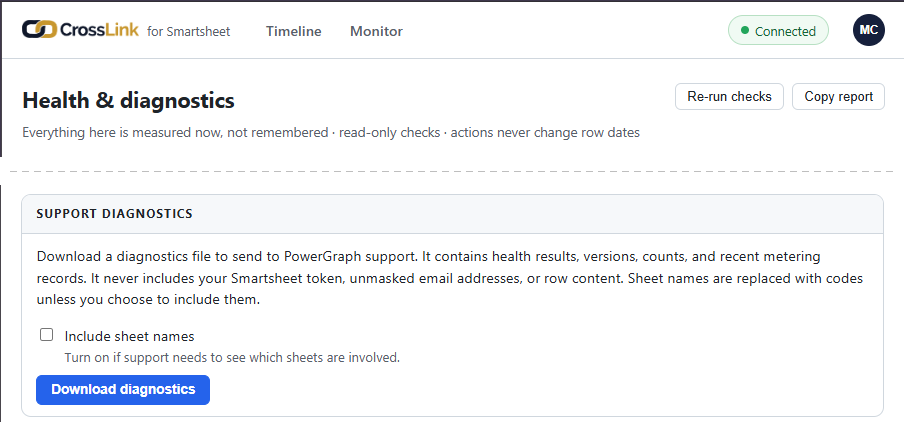
Gather the details first. Open the account menu and choose Health & diagnostics.
- Copy report copies a text report of the page’s checks, ready to paste into your message to support.
- Download diagnostics, in the Support diagnostics panel, saves a file to your computer. The panel lists what it holds. It never includes your Smartsheet token, unmasked email addresses or Row content. Sheet names are replaced with codes unless you tick Include sheet names, which is off until you tick it. After it downloads, CrossLink suggests you open the file and read it before you send it.
Neither button sends anything anywhere. The report and the file go only where you choose to send them.
Then contact us.
- Use the contact form: powergraph.com/contact
- Or email: support@powergraph.com
Include:
- your CrossLink web address
- what you were doing, and what you expected to happen
- the exact message on screen (a screenshot helps)
- roughly when it happened, with your time zone
- the copied report or the diagnostics file
Glossary
- Accept — writes the proposed date onto a Drifted link’s Getter Row in Smartsheet. On a Sheet without dependencies, it moves the Row’s start and finish together when the link follows one of them.
- Add lag — for a Getter whose start is set by Smartsheet’s Predecessors column: changes the lag in that cell so Smartsheet moves the Row to the proposed date.
- Administrator — a person named on the Administrators list on the Setup page. The Tier, overage and Who may connect settings belong to the administrators.
- All rows — the Timeline switch that shows every Row of the ticked Sheets, not only linked ones.
- Broken — a link that needs attention because a Row or Sheet it points at is gone.
- Buffer — a Lag policy: spare days between the Rows absorb a Giver’s slip before CrossLink proposes a move.
- Date column that follows the Giver — on a Sheet without dependencies, the Getter’s date column that Accept moves.
- Date column the link watches — on a Sheet without dependencies, the Giver’s date column CrossLink watches for moves.
- Deployment — your organization’s own copy of CrossLink, at its own web address.
- Drifted — a link whose Giver moved, with a proposed change waiting for the Getter.
- Export links / Import links — save your links and their history to a file, and restore them from it.
- Getter — the Row that follows. Shown in purple.
- Giver — the Row that leads. Shown in teal.
- Health & diagnostics — the page with your deployment’s checks, Copy report and Download diagnostics.
- History — the list of every Accept and Add lag on a link.
- In sync — a link whose Getter still lines up with its Giver.
- Lag — the working days between the Giver’s date and the Getter’s date; by default, from the Giver finishing to the Getter starting.
- Lag policy — how a link reacts when its Giver moves: Preserve lag or Buffer.
- Link — a connection between a Getter Row and the Giver Row it follows.
- Link partners — the Timeline option that shows linked Rows from Sheets you haven’t ticked.
- Monitor — the list view of your links and their statuses; one of the two places to manage links.
- Needs manual update — a Drifted link whose Getter Row you’ve chosen to change in Smartsheet yourself, or that CrossLink can’t change directly.
- Open to review — replaces Accept in the Monitor’s list when the Getter Row moved after the list loaded, or when accepting would change another link on the same Getter Row.
- Overage — linking Sheets beyond the number your Tier includes.
- Predecessors — Smartsheet’s own column that sets one Row’s dates from another’s.
- Preserve lag — a Lag policy: when the Giver moves, CrossLink proposes keeping the Getter the same number of working days after it.
- Refresh — ⟳ Refresh, on both views: re-reads your Sheets and checks every link now.
- Review — the tag on a Drifted Getter Row on the Timeline; click it to open the link. It reads, for example, +7d · Review on a Preserve lag link (calendar days the Giver moved) or +2wd · Review on a Buffer link (working days the Getter would move).
- Row — one Row in a Smartsheet Sheet.
- Setup — the page where your administrator manages the deployment.
- Sheet — one of your Smartsheet Sheets. Where everyone shares one account, CrossLink lists the Sheets that account can open, which may include Sheets you can’t open yourself.
- Show only linked rows — the Timeline’s right-click choice that narrows the chart to one Row and the Rows it is linked to.
- Slipped — a Drifted link whose Giver moved later.
- Tier — your deployment’s size: how many Sheets it can link.
- Timeline — the chart view of your Sheets and links; one of the two places to manage links.
- Who may connect — the list of Smartsheet accounts allowed to sign in to CrossLink.
- Working day — Monday to Friday. CrossLink does not know about holidays.