How to Buy and Assign PowerGraph Visual Licenses on Microsoft Marketplace
PowerGraph's Power BI visuals are sold through Microsoft Marketplace. This guide shows how to start a trial or buy licenses, and how to assign those licenses to your users.
Open the visual's listing on Microsoft Marketplace: Gantt Timeline, Task Board or Sankey. Sign in with your work account, open the plans tab, and choose the plan that fits the number of licenses you want to buy.
Each plan covers a range of license counts, so the number of licenses in your order decides which plan to choose. Current plans and prices are shown on the listing.
Select a billing term, choose whether the subscription renews automatically, and enter the number of users.
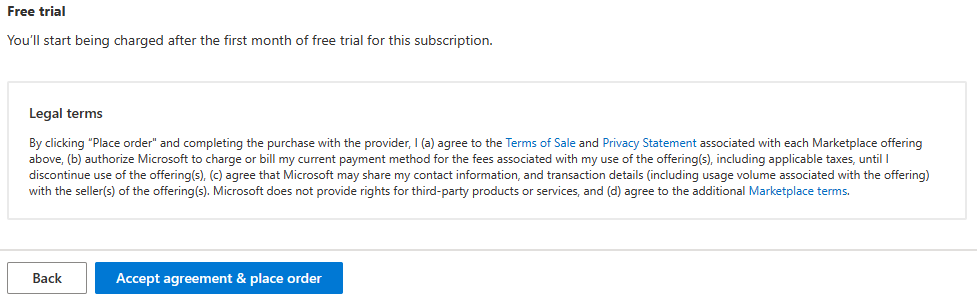
Choose a payment method, then accept the agreement and place your order.
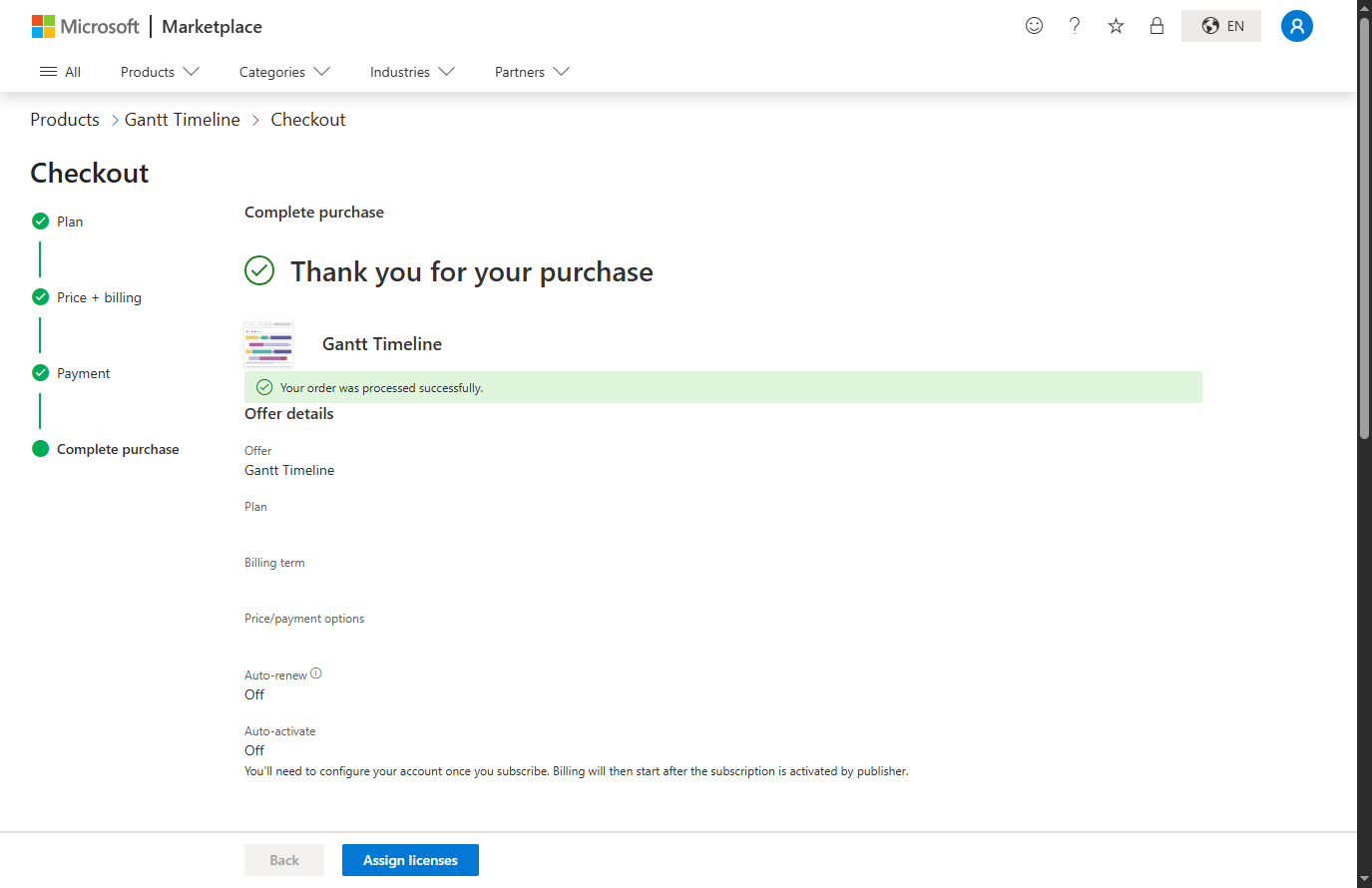
You should now see a confirmation screen, so next you can click Assign licenses. Note that only a Microsoft 365 user with administrator permissions can assign licenses.
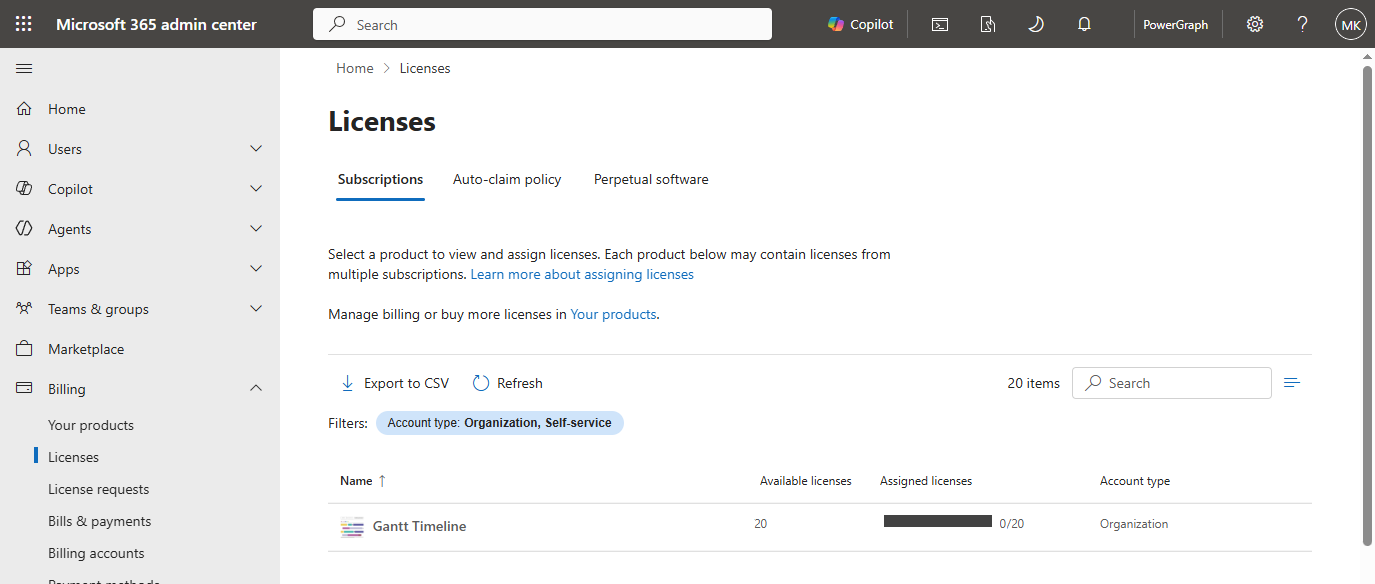
You should be taken to the licenses page of the Microsoft 365 admin center
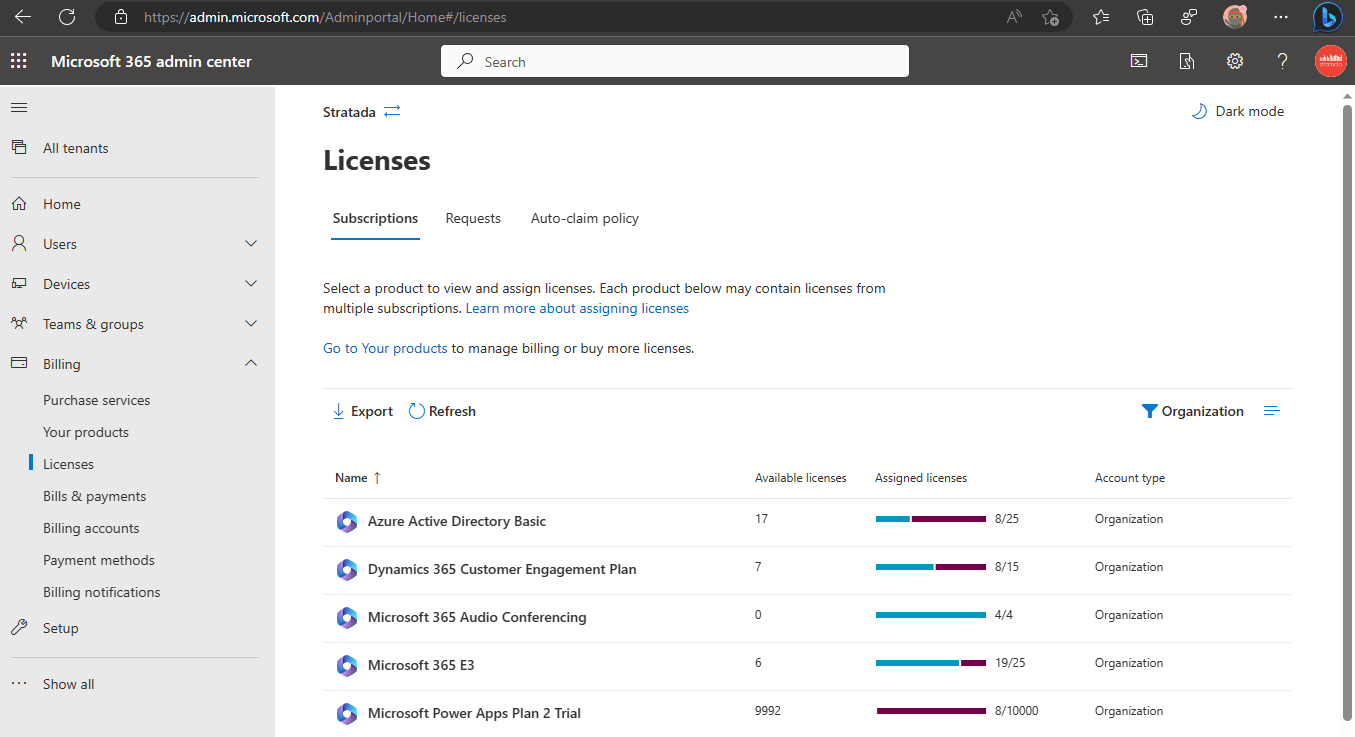
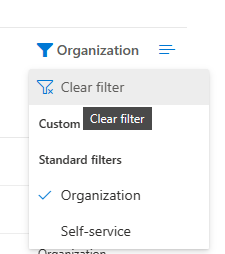
If you don't see your new custom visuals licenses, you may need to clear this filter:
Select the licenses you want to assign:
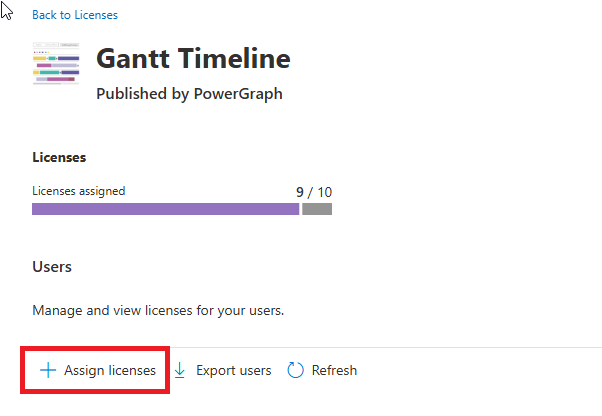
On the next screen click + Assign licenses
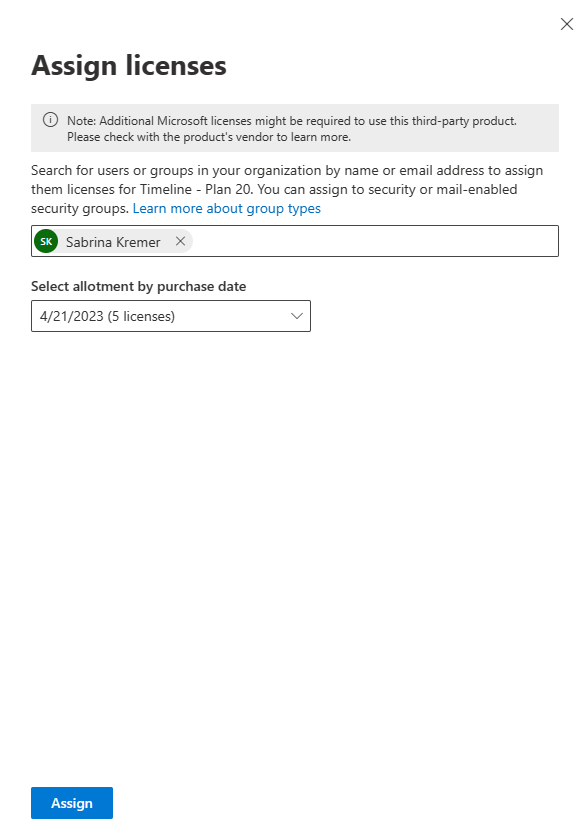
Search for and select the user:
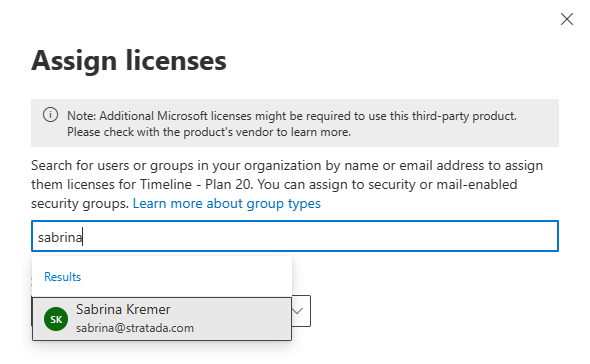
Click assign: